Documents & the Knowledge Center
Upload a document and it doesn't just sit in a folder, KinLife reads it, pulls out the events, and turns it into searchable family knowledge. Browse what it builds at the Knowledge Center.
Uploading a document
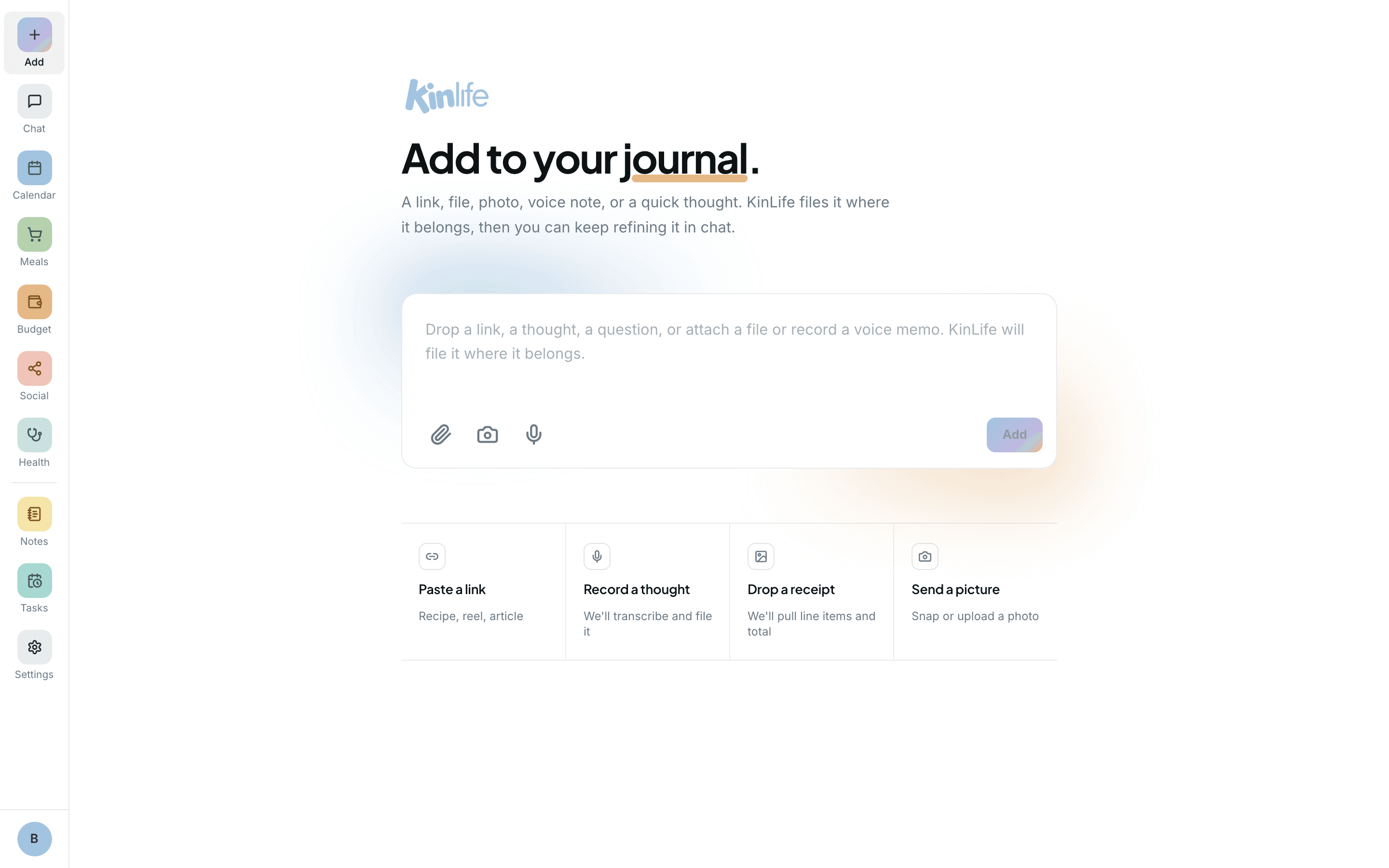
Drag a file into chat, attach it from the Add page, or send a photo via WhatsApp. PDFs, photos, and images up to 20 MB are supported, including a snap of a notice on the fridge.
Automatic event extraction
The flow for anything with dates in it:
- 1KinLife reads the document and finds the dates, times, and details.
- 2It shows you a structured list of detected events with confidence scores.
- 3It checks for clashes against your existing calendar before you approve.
- 4You review, edit if needed, and add them to the family calendar in one tap.
Great for school term calendars, newsletters, sports schedules, club notices, and handbooks.
The Knowledge Center wiki
In the background, a wiki agent reads the whole document and builds a set of linked pages:
- A source page with every fact extracted: dates, names, contacts, deadlines, events.
- Topic pages that fold the new facts into the right place: term dates and assessments alongside the rest of school, contacts with your other contacts, and so on. The page layout isn't a fixed template, the agent shapes it around what your family actually has.
The agent proof-checks its own output against the original and patches gaps before marking the document complete. Resource cards show a pulsing blue dot while processing, green when ready, red if something went wrong.
Asking questions
Once a document is processed, you can ask the assistant a precise question and it finds the exact answer without you digging through a PDF:
- “When is Grade 5's swimming carnival?”
- “Who is the music teacher and what's their email?”
Memory Jobs
The Jobs view (/memory/jobs) shows every ingest, lint, and watchdog run that's happened in the background. If a document fails partway, it's marked failed (not silently complete) and you can retry it from here with one click.
What works best
- Clear, well-lit photos extract more reliably than blurry ones.
- Multi-page PDFs are fine, the agent reads the whole thing.
- Documents are stored securely and stay private to your family. See Privacy & security.